Posts

Windows: Create Lock Screen Shortcut
Image
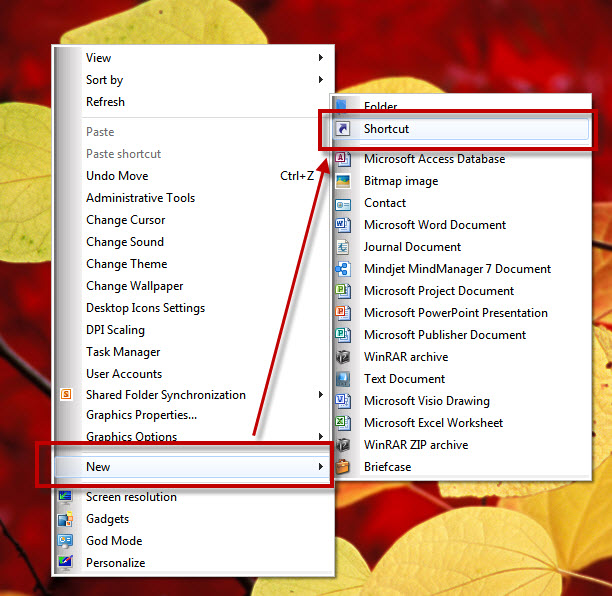
In stead of setting automatic screen lock, you can set one click button to lock it. Follow these steps. Environment : Microsoft Windows 7 Right click at the Desktop. Select " New " and then, " Shortcut " at the context menu. Enter " %windir%\system32\rundll32.exe user32.dll,LockWorkStation " into " Type the location of the item " textbox and then, click " Next " button. Enter any name to the shortcut in " Type a name for this shortcut ". Click " Finish " button. The shortcut will be created on Desktop. It's ready to use from here. Just double click, it will call the screen lock function. To change the picture of the icon, right click at the icon and then select " Properties ". In " Shortcut " tab, click " Change Icon... " button. In " Change Icon " pop-up window, click " Browse... ". Scroll down to find " shel...

Microsoft Word: Manage Multilevel List

Image
Microsoft Word defines the default Multilevel List. You may want to modify it to look different from the existing library. I found it's very difficult to manage the list from the context menu. There is a function to manage it easier. Please check this sample to get some idea. Environment : Microsoft Word 2010 Put the cursor at the list that you want to define new style. Select "Home" tab, click at "Multilevel List" button. And then, select "Define New Multilevel List...". You can change the style of the list in any level you want by selecting the level first in "Click level to modify" list box. And then, select style in "Number style for this level" dropdown list. If you want to include the number of top level, you can select the top level in "Include level number from" dropdown list. It will insert the top level in front of the current number. You can change the position by putting the cursor a...

LINE: Change the contact name

Image
People use some other name to represent themselves in LINE. To search them, you might not be able to remember what name they are using. You can just change the displayed name to what you call them. Follow these steps to change it. Environment : Application: LINE version 3.1.7 O/S: Android Ice Cream Sandwich 4.0.4 Device: Samsung Galaxy S III Press at the friend that you wan to change the name. Press at the pencil sign in the pop-up screen. It will show you the textbox to override the name. Type in the name that you want to call your friend and press "Save". Scroll down or search the new name you just defined.

Android: Clear the default application

Image
You may have been set default application for your android. To remove the default, please follow these steps. Environment O/S: Android Ice Cream Sandwich version 4.0.4 Device: Samsung Galaxy S III Press "Menu" and then select "Settings". Slide down until you find "Application manager" and select the menu. Select "All" tab. Slide up or down to find the application that had been set as a default application and select it. In my case, I select "Chrome". In the "Launch by default" section, if the application have been set as a default, the "Clear defaults" button will be active". Please "Clear defaults" button. Next time, it will pop-up the program for you to select. Reference:  http://www.transformerforums.com/forum/transformer-prime-help/19999-changing-default-applications.html

Android: Create shortcut to sub-menu in Settings

Image
I have to switch Wi-Fi all the time at my customer site to connect to internet. It takes time to open Settings and then Wi-Fi instead of open Wi-Fi menu directly. So, I prefer to create a shortcut into my Home screen straight. Suppose that in Honeycomb version you just press anywhere in Home screen, there will be the context menu for you to create shortcut. Unfortunately in Ice Cream Sandwich, it doesn't work like that. I used to install "Go Launcher EX" to help that but I found out later that in ICS also support this action as well by looking for shortcut in Widgets. Environment O/S: Android Ice Cream Sandwich version 4.0.4 Device: Samsung Galaxy S III Open "Application Drawer" from the dock menu. Select "Widgets" tab. Slide to left or right until you found "Settings Shortcut 1 x 1". Long press at the widget and drag to Home screen. There will be the pop-up sub-menu list, slide up or down to find the sub-menu th...

Android: Create group for icons

Image
You may accustom with group of icons in iPhone that is created just by dragging icon of an application over the other. Here in ICS calls "Folder". It works a bit different in ICS. Without installing other application you can use ICS function to create. Environment : O/S: Android Ice Cream Sandwich (ICS) version 4.0.4 Device: Samsung Galaxy S III Long press anywhere at the Home screen which you want to create group of icon (Folder). Select "Add to Home screen" in the "Home screen" pop-up. In "Add to Home screen" pop-up, select "Folder". The system will create empty folder into the Home screen. Now you can drag icons into the folder that you just created. When you click at the folder, it will show the icons you just added. You can click at "Unnamed Folder" and assign the folder name.

Mobile: Capture screen for Samsung Galaxy S3

As far as I know, there are 2 ways to perform the screen capture. Environment : O/S: Android ICS version 4.0.4 Device: Samsung Galaxy S III Option 1 : Swipe your palm from right to left of the screen. This option is very fast to capture the screen. but it's kind of annoy when your hand accidentally press an icon or menu, scrolling the screen or unable to capture the pop-menu. Option 2 : Press "Home" button and "Power" button simultaneously . It's good to capture exactly what is showing in the current screen. Reference:  http://www.youtube.com/watch?v=kQ7jiaC4Zc8