Posts

Microsoft Word: Split document to view side by side
Image
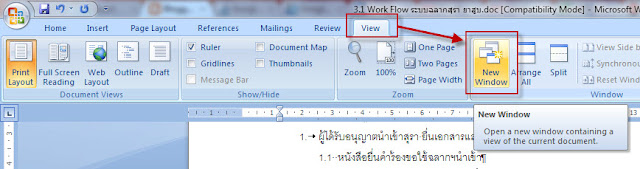
Sometimes, you want to view the document in the other page without moving from your current position. Microsoft Word provides the function "Split" in "View" menu but it's horizontal alignment. The monitor nowadays is more wide. So, it's more comfortable to view and compare document vertically. Again, unfortunately, Microsoft Word doesn't provide shortcut function to do such a thing. And without having to save as the document into another copy, here I write the steps to do: - From "View" menu, select "New Window". It will open the same document in new window. - The new document will be titled as "2" and the original one will be titled as "1". Click menu "View" and then click "View Side by Side". - The windows will be aligned vertically. And if you don't want to make it synchronize with scroll up and down both document, you can click at "Synchronous Scrolling" to disa...

Microsoft Visio: How to set default font

Image
Microsoft Visio doesn't have the easy way to set its default font and size. Please follow these steps to make change of your drawing. Environment : Microsoft Visio 2007 Solution No. 1 : Set default font and size from Style Note that this solution will not apply to the drawing that you change to specific font. - From menu bar, select 'Tools' and then 'Options...'. - In 'Options' pop-up window, select 'Advanced' tab. At 'Advanced options', check 'Run in developer mode' and press 'OK' button. This option will allow you to select 'Define Styles...' sub-menu. - Draw some drawing and select it. At the menu bar, select 'Format' and then select 'Define Styles...' sub-menu. - In 'Define Styles' pop-up window, at 'Style' section, the default style name will be selected automatically follow by the style of the drawing that we selected befo...

Microsoft Word: How to repeat header row from table

Image
When you create document, you may want to repeat header of the table in every page like the option 'Row to repeat at top' in Microsoft Excel. You can do that in Microsoft Word as well by following these steps. Environment : Microsoft Word 2007 - Be sure that you are in 'Print Layout' view mode. - Select the header row that you want to repeat in every page. - After that, at the menu bar, select 'Layout'. Inside the menu, select 'Repeat Header Rows'. That's all. You will get the repeated header row in every document page.

English: Always VS. Alway

ระหว่างคำว่า Always และ Alway อันไหนถูก? เท่าที่ดู Alway เป็นคำเก่าที่อ้างอิงได้จาก Bible   ปัจจุบันใช้ Always มากกว่า ทั้งนี้สรุปความหมายได้ประมาณนี้ Alway = ตลอดเวลา, เสมอ Always = ทุกครั้ง ตัวอย่างประโยค: Jesus said, “lo, I am with you alway , even unto the end of the world. Amen.” (Matthew 28:20b). Yet He also said, “but me ye have not always .” (John 12:8b). แปลได้ว่า: พระเยซูทรางพูดว่า "โล, ฉันอยู่กับท่าน ตลอดเวลา แม้แต่เวลาสิ้นโลก อาเมน" (แมทธิว 28:20บี)  แต่พระเยซูก็ทรงพูดด้วยว่า "แต่ฉันไม่ได้อยู่กับท่าน ทุกครั้ง " (จอห์น 12:8บี) ซึ่ง 2 ประโยคข้างต้น ไม่ได้เป็นการขัดแย้งกัน โดยที่จอห์นได้อธิบายเรื่องการปรากฏพระวรกายของพระเยซู ซึ่งแม้จะไม่ปรากฏกายบนโลก ทุกครั้ง แต่ท่านก็ทรงอยู่กับมวลมนุษย์ ตลอดเวลา อ้างอิง: 1)  http://av1611.com/forums/showthread.php?t=943 2)  http://www.5steps2english.com/forums/alway_or_always-t637.0.html

Windows Explorer: How to solve when Windows Explorer freeze often?

Environment: Windows 7 Ultimate 64 Bits 1) If you install Anti-Virus "Kaspersky", remove it and see if it help.          I did remove it and install AVG instead. It helps.

Excel: Convert Second to Minute

You have number of second and want to convert into minute format. Use this function. Replace you value in this function: =INT( value /60) & ":" & TEXT(INT(MOD( value ,60)), "00") For example: =INT(H4/60) & ":" & TEXT(INT(MOD(H4,60)), "00") Note that 'H4' is cell in Excel. The value will be: 603 Seconds will be shown as 10:03

Microsoft Word 2010: Tab is no longer working within bullet/numbered outline

Image
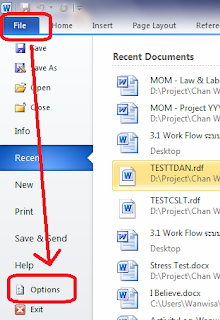
Normally, you will use TAB in Word Processing to help increasing indent and use Shift+TAB to help decreasing indent. Somehow, you mistyped something and TAB is no longer help to increase or decrease the bullet and numbering anymore without Microsoft Word noticing you. To set it back for Microsoft Word 2010, please follow these steps: - Select 'File' -> 'Options' - In 'Word Options' window, select 'Proofing' and then 'AutoCorrect Options...' button. - In 'AutoCorrect' window, select tab 'AutoFormat As You Type', check at 'Set left- and first-indent with tabs and backspaces' and then click 'OK'.